How Ditto AI turns one recording into an agent
Ditto AI watches you do a task once on your Mac: the screen, your clicks and, if you like, your voice. A model reads the recording and writes down the process, its steps and its inputs. Ditto then finds a real tool for each step, checks it with one read-only call, sets permissions from a fixed table, and packages it all as an agent you review before it runs.
The short version
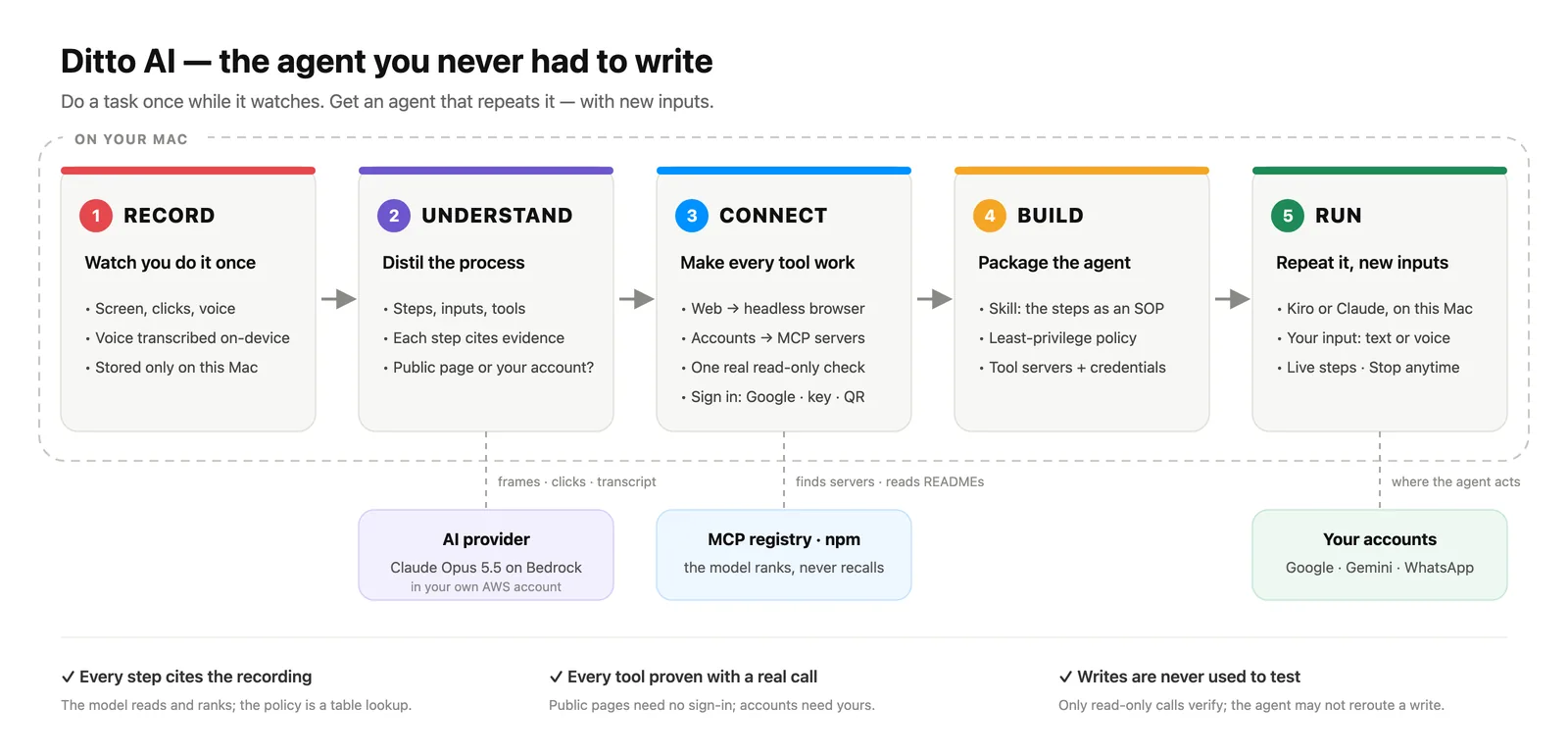
Ditto AI works in five stages, and all but one of them run on your Mac.
- Record. You do the task once, start to finish, the way you always do it.
- Understand. A model reads the recording and writes down the process: its goal, its steps and the inputs that change each time.
- Connect. Ditto finds a tool for every step and proves each one works with a single read-only call.
- Build. The steps, tools and permissions are packaged as an agent you can read and edit.
- Run. The agent does the task again with new inputs, in Ditto or in Claude Code or Kiro, and you can stop it at any point.
1. Record: you do the task once
You start a recording from the menu bar or with ⌃⌥⌘R, and a small panel shows the time and how many frames Ditto has kept. Then you do the task, a real one, with real data. The best recordings span two or three apps: an email, a folder, a spreadsheet.
While you work, Ditto keeps:
- Frames of the screen, taken when something changes rather than as a continuous video.
- What you clicked and where, read through macOS Accessibility: the control you clicked, the one in focus, the address in the browser’s URL bar.
- Your voice, if you talk. Narration is optional. Speech is transcribed on your Mac, with SpeechAnalyzer on macOS 26 and on-device speech recognition on macOS 15. There is no server fallback, and the audio is deleted afterwards.
The recording is stored in your user folder on the Mac, under Application Support. Ditto’s own windows are left out of it.
Talking through the task helps more than you’d expect. Saying “this is the invoice number, it changes every week” tells the model which values are inputs and which stay the same.
2. Understand: the process, its steps and its inputs
When you press Stop, Ditto splits the recording into steps using the clicks and app switches, which doesn’t need a model. Then a model reads the frames, the clicks and the transcript together and writes down:
- The process: a name and a goal, such as “File this week’s invoice and log it in the expenses sheet”.
- The steps, in order, each with the app it happened in.
- The inputs: the values that will be different next time, like the vendor or the amount.
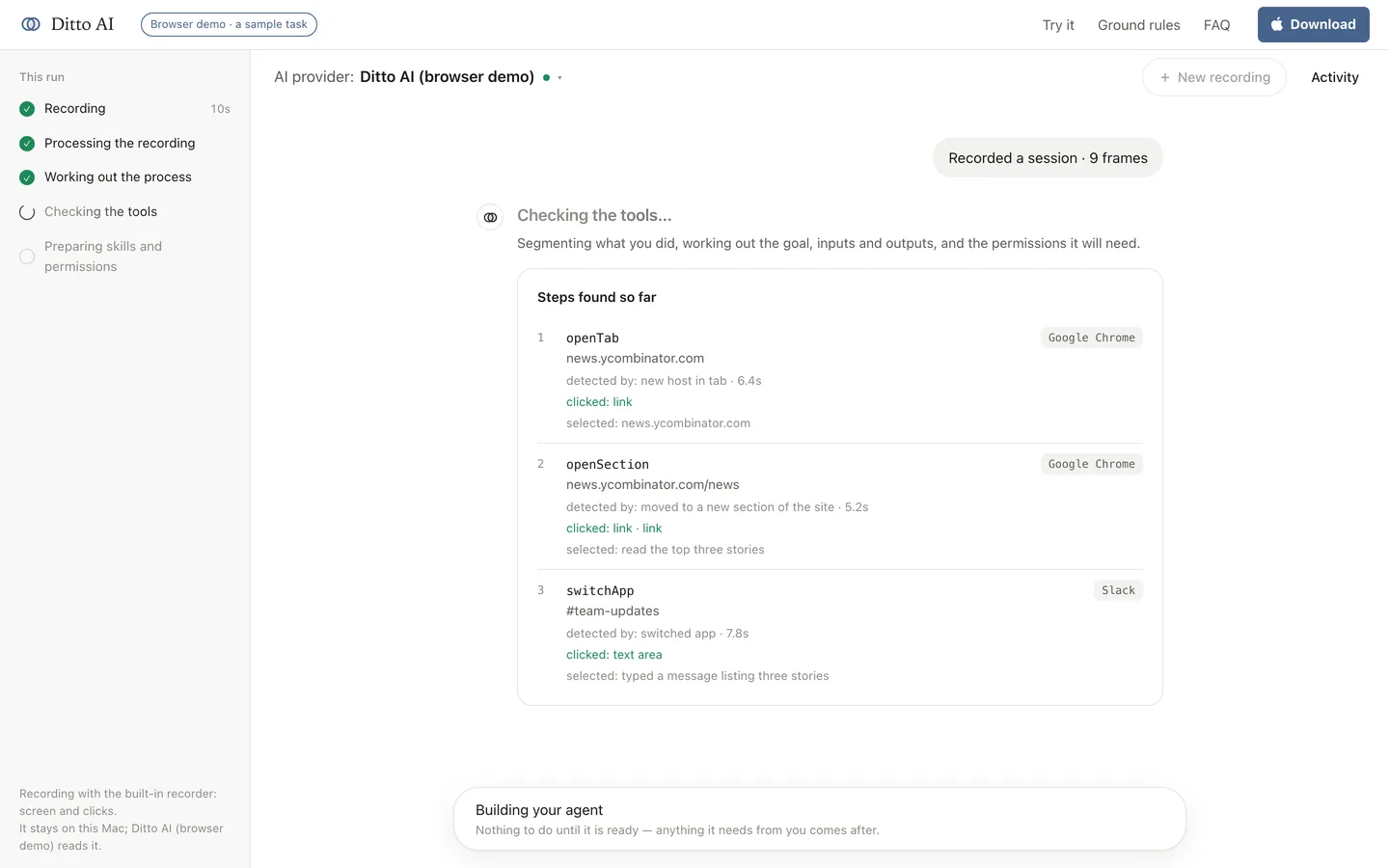
Every step has to point at the frames and clicks it came from. A step with nothing to point at is dropped instead of kept as a guess. Speech can explain a goal, but it can’t add a step on its own: saying “then I’d email it” doesn’t create an email step if you never opened your mail.
The model reading the recording is the AI provider you choose when you set Ditto up, either your own Anthropic, OpenAI or Amazon Bedrock account, or Ditto AI’s. That is the one stage that leaves your Mac: the frames, clicks and transcript go to that provider so it can read them.
3. Connect: a working tool for every step
Each step is either public, a page anyone could open, or signed in, something that needed your own account. Being logged into Google doesn’t make a Google search a signed-in step.
- Public steps use one headless browser with a fresh, in-memory profile. Nothing needs configuring, and verification simply opens the page you visited and checks it comes back readable.
- Signed-in steps need a real integration: an MCP server for that app. Ditto looks for candidates in the official MCP registry and on npm. The model ranks what was found, but it never names a server from memory, and anything it suggests that wasn’t found is thrown out. Read more in What is an MCP server?.
Then Ditto checks each tool for real. For a signed-in step it starts the server, completes the MCP handshake and makes one real, read-only call, such as listing channels or reading a page. If the server needs Node or uv, you see the exact command with Allow and Deny before anything is installed. If it needs a key or a sign-in, Ditto reads the server’s own README to find out exactly what, and asks you for it in a dialog: a key field, a Sign in with Google button, or a device link.
Nothing that writes is ever called during a check. A tool counts as a write if the server says so, or if its name suggests it, and a tool Ditto can’t classify counts as a write. Each tool ends up with a clear status:
| Status | What it means |
|---|---|
| configured | The server starts and a real call returned data |
| input required | It needs a key or a sign-in from you |
| rate-limited | Your key works; the service is throttling it right now |
| check failed | The server starts, but the call didn’t work |
| manual | No integration exists; the agent works the app on your Mac |
4. Build: steps, tools and permissions, packaged
The agent Ditto builds has three parts: a skill that holds the steps as a written procedure, the tool servers with their credentials, and a permission policy.
The policy is the part that matters most, and the model doesn’t write it. The agent may use only the tools your recording actually used, and each one’s access, read or write, is looked up in a fixed table. Public web pages are read-only. If Ditto can’t tell whether a tool reads or writes, it treats it as a write.
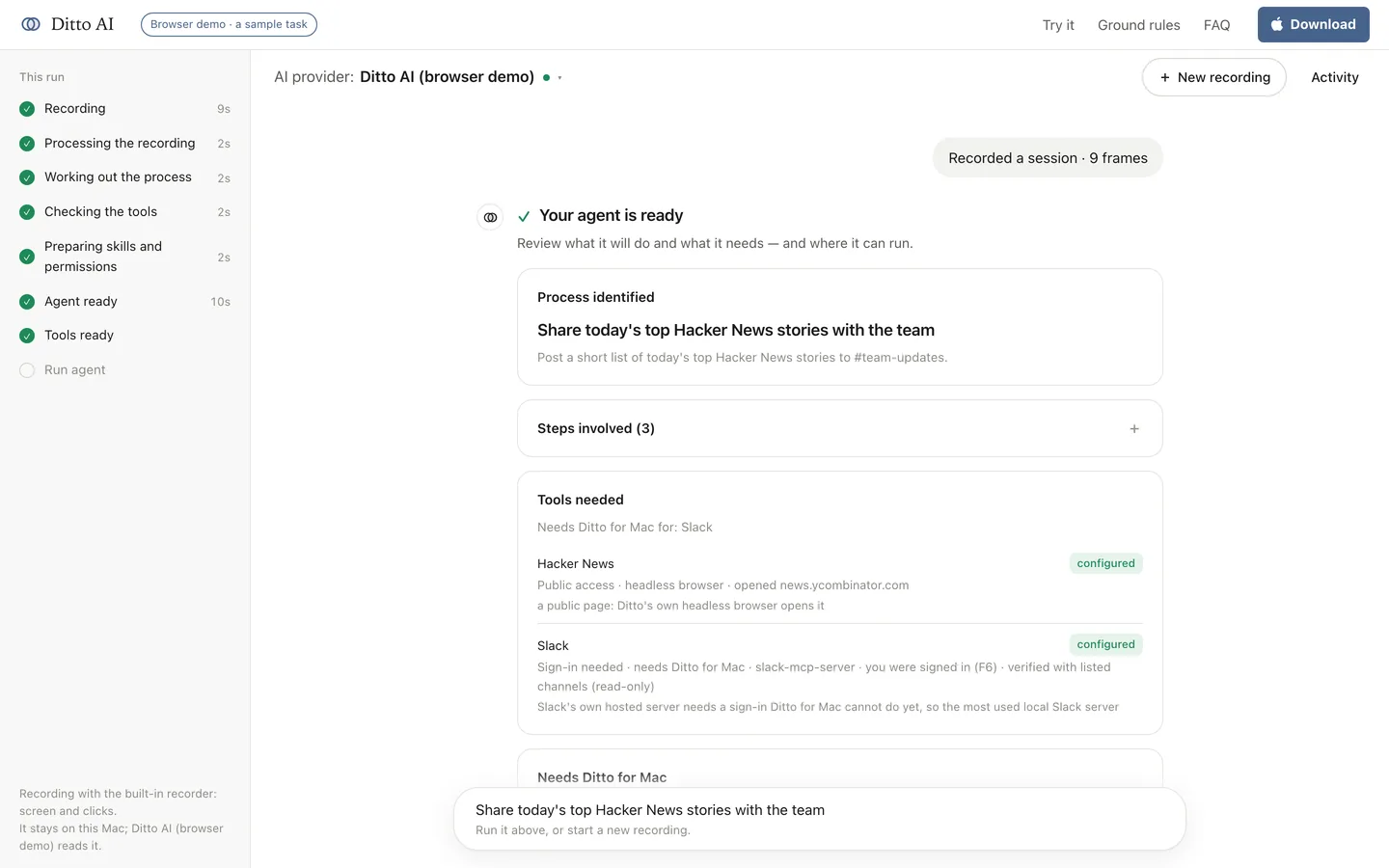
Before anything runs, you see all of it: the process, each step and its evidence, the inputs, every tool with its status, and the reason it was picked. You can change a step, an input or a tool at this point.
5. Run: the same process, with new inputs
To run the agent, type or say what’s different this time, such as a new topic or another recipient, or leave it empty to repeat what you recorded. Ditto can run it itself, or install it into Claude Code or Kiro on your Mac with the tool servers it needs attached.
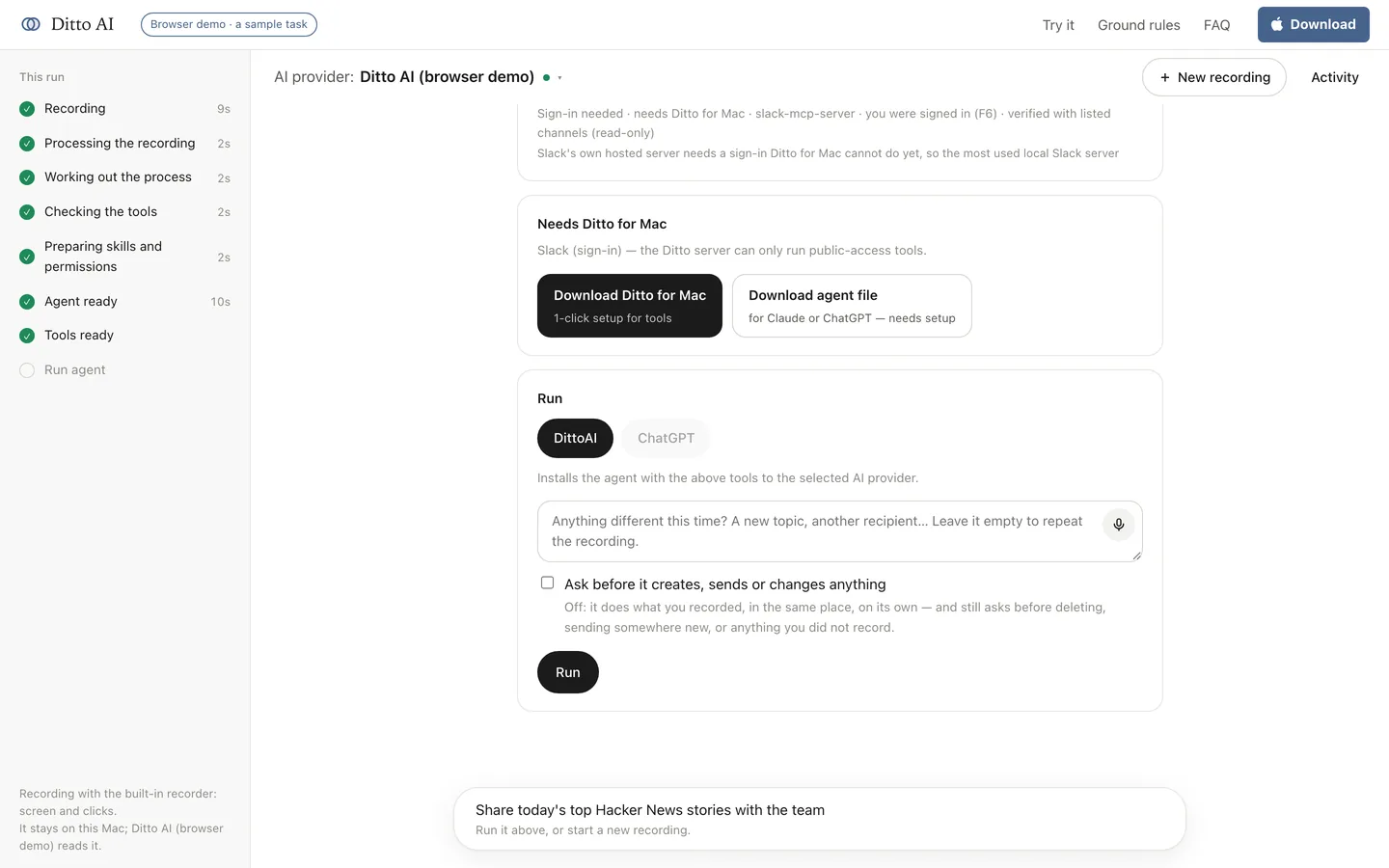
You decide how far it goes on its own:
- Ask before it creates, sends or changes anything: every write is prepared as a draft and shown to you first.
- Off: it does the writes you recorded, in the same place, on its own, and still stops to ask before deleting anything, sending somewhere new, or doing anything you didn’t record.
You watch the steps as they happen. Stop ends the run and shuts down every tool server it started. Whatever it finished by then still counts.
What Ditto won’t do
- It won’t let the model set permissions. They come from a table.
- It won’t change anything to prove a tool works. Checks are read-only.
- It won’t invent integrations. Servers come from the MCP registry and npm.
- It won’t keep a step it can’t point to evidence for.
- It won’t send your recording to a transcription service. Speech is transcribed on your Mac, or not at all.
Limits worth knowing
- A recording of one idle app has nothing to repeat, and Ditto says so rather than inventing a process.
- Some content can’t be captured. DRM video shows as black, and apps that hide their windows from screen capture leave gaps.
- Permissions are coarse for tools Ditto doesn’t know. An unrecognised MCP tool defaults to write access: safe, but wider than necessary.
- It needs a Mac with Apple silicon and macOS 15 or later. On anything else, you can still try the demo in your browser.
To set it up, see Install and set up Ditto AI. To see why the permission rules are built this way, read Is it safe to let an AI agent use your accounts?